
In all queryable collections, the path helper is enhanced to provide more accurate autocomplete proposals. Now, the path proposals do not come just from the first object of the collection, but from the number of objects you define yourself as an admin. Also, you can define other path criteria like IDs, types, values, which you can provide in a Filter Query. To achieve this:
- In Configuration Management, on Admin → Collection → Details, we introduce a new section ‘Path Info Configuration’, so that you can view the current values, or the default values as in the example below, and edit the sample size and the filter query:
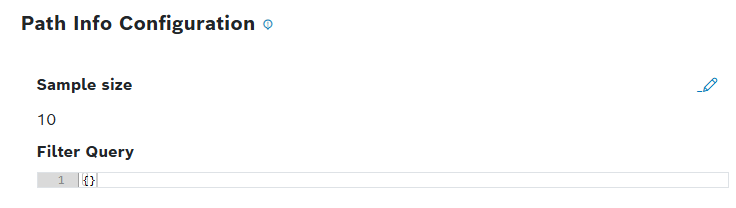
The Edit button opens a dialog with two fields:
• Sample size: Required field with integer input – min 1, max 1000, default 10
• Filter Query: Optional field, JSON editor, default {}
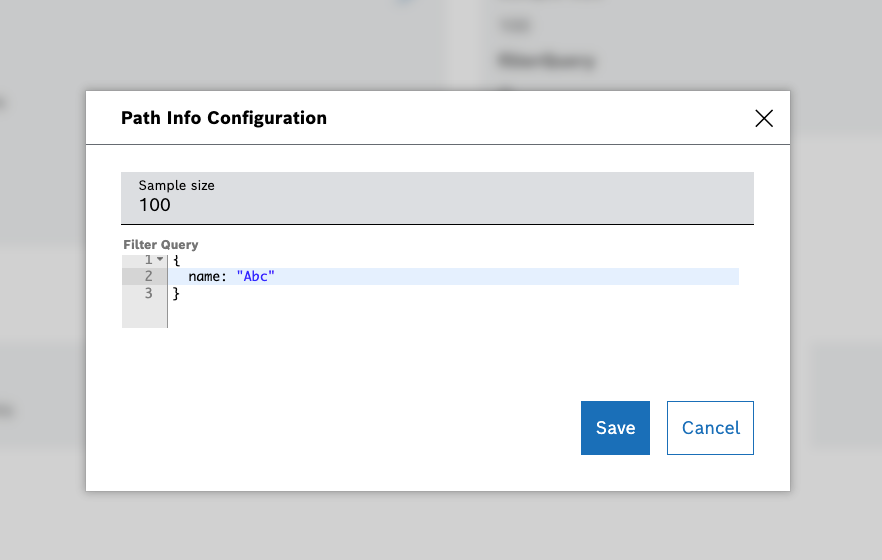
After you have created the ‘Path Info configuration’, the new default Data Browser’s behavior changes accordingly.
- In Data Browser, a new Query Service endpoint generates path information just-in-time by sampling documents from a collection. This endpoint is used by the Data Browser Path Helper and Filter Widget to provide path suggestions without requiring pre-computed path information from a Query template. The endpoint dynamically samples documents based on your configuration and returns aggregated path metadata including types, example values, and occurrence counts.
- In Filter Widget edit panel’s Data Source section, a new ‘Path Info’ source is now selectable from the Add Source dropdown list. Аvailable in the filter widget only, the Path Info can be used only once as a data source.
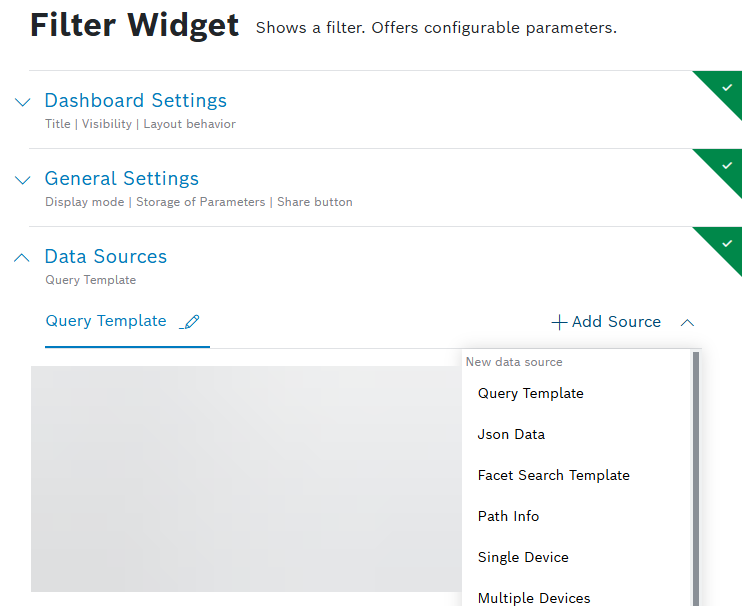
When you select the ‘Path Info’ source, you have to a) choose a collection to be used for path autocomplete, and b) save the data source.
After you have configured the ‘Path Info’ source, all query-condition parameters defined in advance in the ‘Path Info Configuration’ of the collection will automatically use the configuration for path autocomplete instead of paths derived from the main data source:
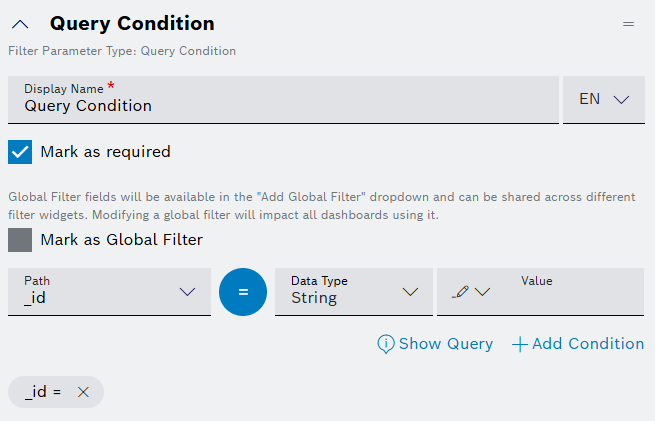
When no ‘Path Info’ source is configured, the new default behavior remains unchanged.
For more information about the Collections and the Filter widget, refer to Collections and Filter widget user guides.